Audit Logs
The Audit Logs feature allows Administrators to track actions and events within the system, such as user modifications, configuration changes, and access attempts. Each log entry includes the timestamp, user, performed action, and relevant details, providing a transparent and traceable activity history.
Administrators can filter logs by changed on date, event type, and user. Each log entry displays the date and time, event type, record type, record ID and who made the change.
1. Access the Audit Logs
-
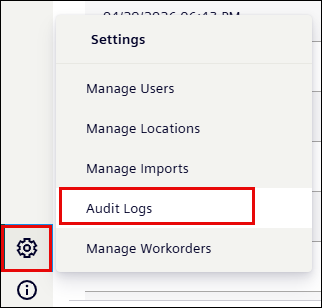
Go to the Settings
 icon.
icon. -
Click Audit Logs.
2. Filtering Audit Logs
Use the filters for Changed on, Event Type, Record Type, and Changed By to narrow the results.
-
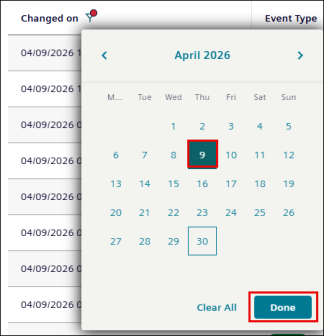
Changed on: This filters when the event was changed.
-
Click Changed on filter.
-
Select the date.
-
Click Done to apply the filter or Clear All to remove it.
-
-
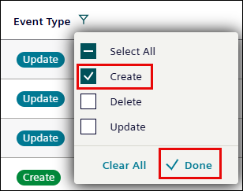
Event Type: This filters the event by it’s types- Create, Update, and Delete.
-
Click Event Type.
-
Select Event.
-
Click Done to apply the filter or Clear All to remove it.
-
-
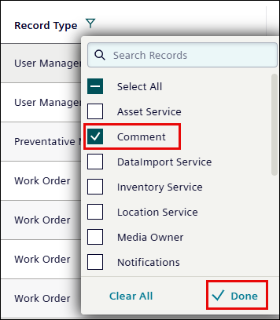
Record Type: This filters the Events as per the type of record.
-
Click Record Type.
-
Select a Record.
-
Click Done to apply the filter or Clear All to remove it.
-
-
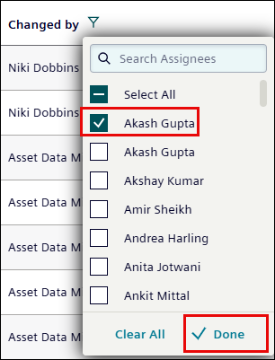
Changed by: This filters the Events based on who changed the event.
-
Click Changed by.
-
Select a user.
-
Click Done to apply the filter or Clear All to remove it.
-
3. Viewing Event Details
-
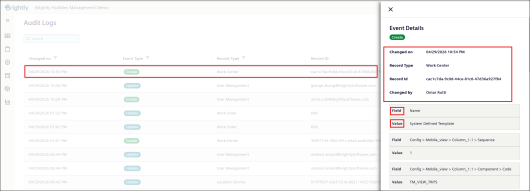
Click a log entry to open the Event Details dialog box.

-
The dialog shows detailed event information, including user’s name, timestamp, record updated, and before/after field values.